Your Salesforce administrators may already use Single Sign-On (SSO) and Multi-Factor Authentication (MFA). That does not necessarily mean their login satisfies Salesforce new phishing-resistant MFA enforcement.
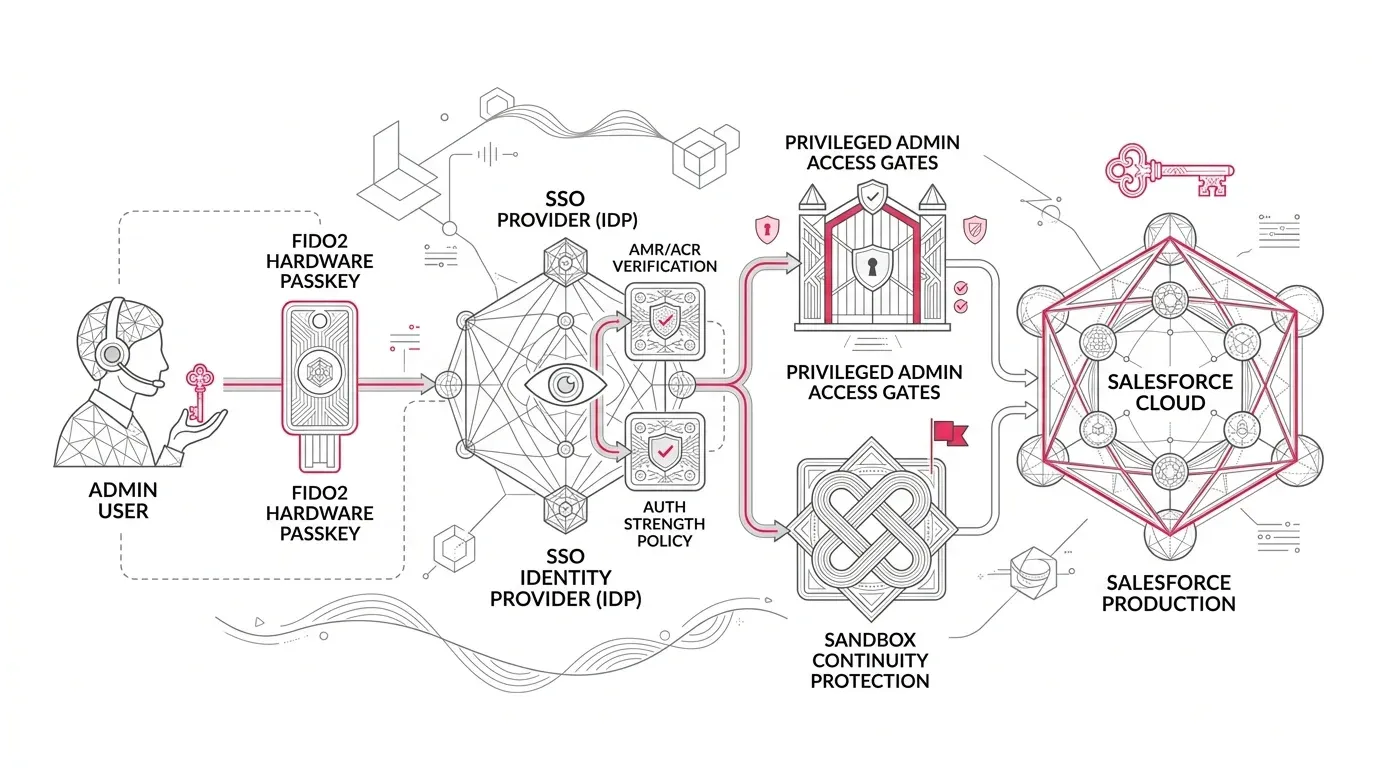
Core Identity Principle: Salesforce now evaluates the authentication strength signal conveyed by identity providers (IdPs). If an SSO SAML assertion or OIDC token lacks a recognized phishing-resistant AMR or ACR claim, Salesforce triggers secondary passkey challenges or blocks direct access.
Salesforce has completed the phased rollout of phishing-resistant MFA across paid production and sandbox environments for privileged users. Privileged users logging in directly must use WebAuthn-compliant hardware security keys or built-in authenticators, while SSO logins require verifiable authentication strength signals.
Who Qualifies as a Privileged User in Salesforce?
The enforcement scope extends beyond the standard System Administrator profile. Salesforce classifies any user with at least one of the following permissions (granted via profiles or permission sets) as a privileged user:
- System Administrator Profile
- Modify All Data (Full record manipulation across objects)
- View All Data (Unrestricted visibility across all records)
- Customize Application (Metadata, schema, and configuration authority)
- Author Apex (Code execution and deployment capabilities)
Why SSO & MFA Still Produce Passkey Prompts: Understanding AMR & ACR Claims
Single sign-on confirms that an identity provider authenticated the user, but Salesforce requires cryptographically verifiable evidence of how authentication occurred. This evidence is delivered in Authentication Methods Reference (AMR) or Authentication Context Class Reference (ACR) claims.
| Classification Level | Sample AMR / ACR Values | Salesforce Enforcement Behavior |
|---|---|---|
| Phishing-Resistant (Approved) | fido, fido2, passkey, phr, smartcardpki, x509 | Full access granted seamlessly without secondary prompts |
| Standard MFA (Restricted) | mfa, okta_verify, rsa, timesynctoken, sms, otp | Salesforce prompts for registered passkey enrollment before granting entry |
| Password-Only (Blocked) | pwd, password, unauthenticated | Access blocked until phishing-resistant challenge is satisfied |
Five Post-Enforcement Failure Modes to Audit
Enterprise security teams frequently encounter five unexpected disruption vectors during enforcement:
- IdP Claim Mismatch: The identity provider enforces FIDO2, but the SAML response mapping sends generic "mfa" values instead of explicit "fido" AMR tokens.
- Creeping Permission Sets: Business analysts, integration users, or contractors hold legacy View All Data or Author Apex permissions, triggering unexpected passkey prompts.
- Sandbox Refresh Lockouts: SAML configurations copy during sandbox refresh, but recipient URLs change and SSO is disabled by default. Admins lacking local hardware keys get locked out.
- Headless Automation Failures: Automated UI testing suites logging in as privileged users get blocked by interactive WebAuthn challenges.
- Known Platform Edge Cases: Issues such as passkeys missing during setup-initiated identity verification or Lightning Login conflicts under strict PRMFA.
A Practical 7-Step Remediation Plan
- Step 1 (Audit Privileged Access): Generate an org-wide report on the System Administrator profile and the four qualifying permissions across all profiles and permission sets.
- Step 2 (Inspect Login History Claims): Perform test logins and review Login History for incoming AMR and ACR values in SAML/OIDC assertions.
- Step 3 (Configure IdP Authentication Strengths): Update Microsoft Entra ID Authentication Strengths or Okta Authenticator Policies to emit recognized FIDO2/WebAuthn claims.
- Step 4 (Establish Redundant Passkey Enrollment): Require administrators to register primary and backup hardware security keys (e.g., YubiKey + Touch ID/Windows Hello).
- Step 5 (Re-Architect Sandbox Refresh Runbooks): Maintain dedicated direct-login break-glass accounts with pre-registered hardware keys for sandbox post-refresh configuration.
- Step 6 (Decouple Automated Service Accounts): Transition UI automation and backend integrations to OAuth 2.0 Client Credentials or JWT Bearer flows.
- Step 7 (Operationalize Governance): Embed quarterly permission recertifications and MFA telemetry reviews into standard change control.
Secure Your Salesforce Identity Architecture with YuniQ
YuniQ provides end-to-end Salesforce security audits, SSO AMR/ACR claims alignment, least-privilege permission refactoring, and emergency access runbooks.
Explore Salesforce Security ServicesFrequently Asked Questions
Why is Salesforce asking for a passkey after successful SSO authentication?
This occurs when the SAML assertion or OIDC token sent by your identity provider does not include a recognized phishing-resistant AMR or ACR claim value (such as "fido" or "passkey"), even if MFA was satisfied at the IdP level.
Is Salesforce Authenticator considered phishing-resistant for privileged admins?
No. Standard push notification and TOTP mobile authenticators (including Salesforce Authenticator) are classified as standard MFA. Phishing-resistant enforcement requires FIDO2 WebAuthn security keys or device passkeys.
How do we prevent admin lockouts after a sandbox refresh?
Because SSO is disabled and MFA authenticators do not copy during a sandbox refresh, administrators must have direct-login credentials and register a WebAuthn security key directly within the sandbox environment to restore SSO settings.
Does phishing-resistant MFA break backend API integrations?
Headless backend integrations utilizing OAuth 2.0 JWT Bearer Flow or Client Credentials Flow are not affected by interactive UI MFA challenges. However, integrations using username-password or interactive web-server flows must be refactored.