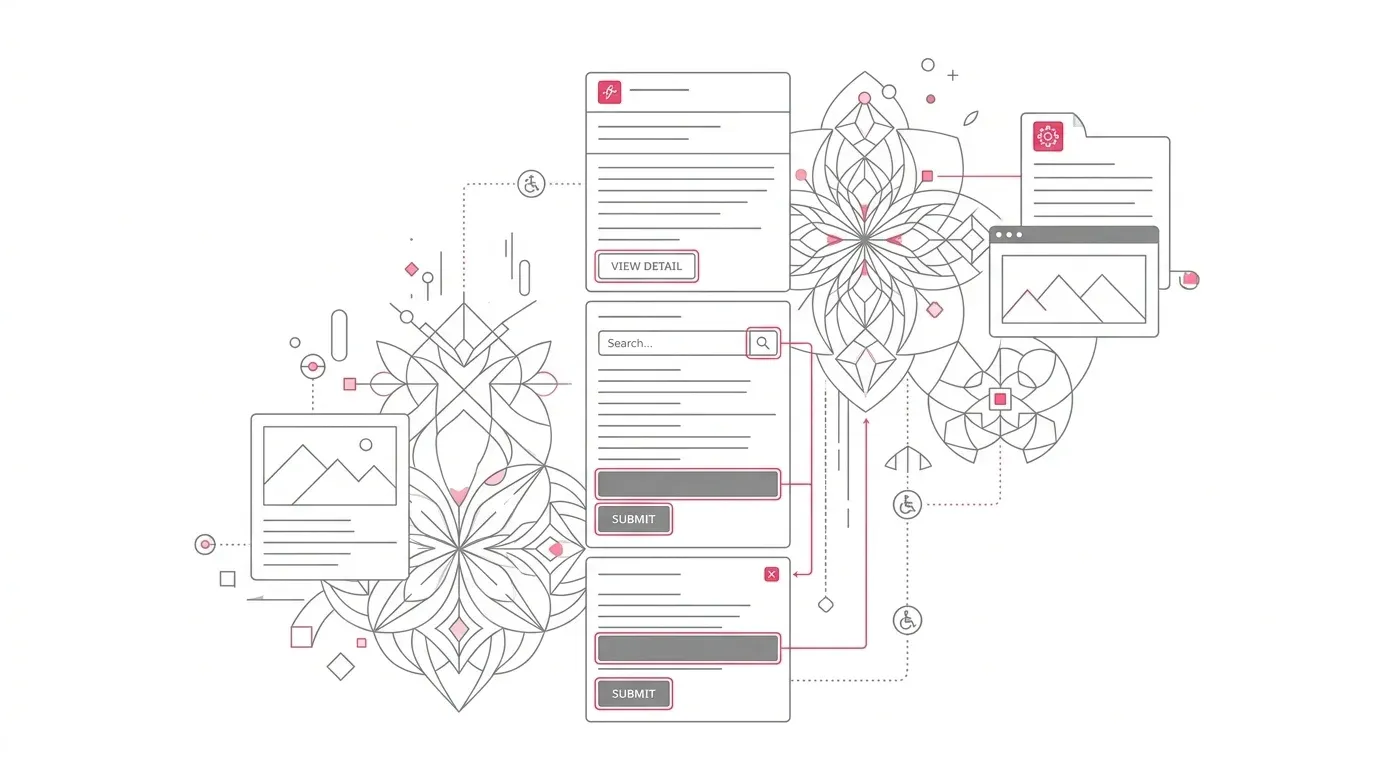
Salesforce Winter ’27 is changing how Lightning Experience behaves when users magnify the browser beyond 200%. Page headers, modal windows, date pickers, popovers, utility bars, record headers, cards, menus, and side panels are being updated to reflow more effectively instead of clipping content, covering controls, or forcing avoidable horizontal scrolling.
That is a meaningful platform improvement. It is not, however, a substitute for testing your Salesforce implementation.
Salesforce’s published production rollout dates are September 4, October 2, and October 9, 2026. Some organizations already have the changes; others are approaching their upgrade window. The immediate task is to prove that complete business workflows remain usable at 200% and 400% zoom, especially where standard Lightning elements meet custom components, managed packages, dense record pages, and local styling.
For healthcare, insurance, and nonprofit organizations, this is operational work. A clipped button in a modal can block a case update. A date picker that cannot be reached can stall an appointment, eligibility, claim, or grant workflow. A panel that covers content can slow a service representative working under time pressure. The test must therefore cover the work people perform, not just whether a page loads.
What Winter ’27 Is Enforcing
Salesforce groups the change into three related release updates:
- Page headers and modal windows. At high magnification, headers scroll with the page instead of blocking content, while modal content and actions remain within the viewport.
- Date pickers, popovers, bottom utility bars, and record headers. These elements adapt at magnification up to 400%, with content kept available without unnecessary horizontal scrolling.
- Cards, docked containers, menu lists, and panels. Headers can wrap, panels remain within the visible area, and docked or side-panel content is designed not to cover the underlying page.
Salesforce says the first update is a prerequisite for the other two. If your team is still testing or activating the changes before enforcement, follow the dependency order shown in Setup → Release Updates rather than treating the three items as unrelated toggles.
The changes apply to Lightning Experience in all editions. Your actual production date depends on the Salesforce instance, so confirm it in Salesforce Trust rather than assuming that another organization’s date is yours.
What the Platform Update Does Not Prove
The release changes the behavior of Salesforce-provided interface elements. It does not certify every configured page, custom component, package, or end-to-end process in your org.
That distinction matters in mature implementations. A Lightning record page can combine standard components with:
- custom Lightning Web Components and older Aura components;
- managed-package interfaces;
- fixed-width tables, multi-column forms, and dense record highlights;
- custom CSS that assumes a specific Salesforce DOM structure;
- screen flows displayed in modals;
- embedded content and third-party widgets; and
- local validation, error, and confirmation states that appear only after an action.
Salesforce explicitly says its standard-component internals are protected and can change, including to support accessibility. Customizations or tests that depend on undocumented internal markup or CSS classes can therefore suffer visual regressions when those internals change.
This is why a screenshot of the account page at normal zoom is not release evidence. The evidence must show that representative users can complete a representative task at high magnification, including every transient state along the way.
A Seven-Step Test Plan for 200% and 400% Zoom
1. Confirm the instance date and update status
Record the Winter ’27 maintenance date for each production org and important sandbox. In each org, review Setup → Release Updates and capture the status of all three accessibility updates.
Do not assume every sandbox matches production. Record the Salesforce release, browser, operating system, viewport, and activation status used for each test so failures can be reproduced.
2. Build a workflow inventory based on business consequence
Start with tasks where a hidden control, clipped value, or inaccessible action creates operational harm. Examples include:
- creating, triaging, escalating, and closing a service case;
- recording a patient, member, claimant, broker, donor, or grantee interaction;
- selecting an effective, appointment, renewal, or submission date;
- completing an approval or guided screen flow;
- using a utility-bar tool while a record remains open;
- reviewing alerts, guidance, or knowledge in a side panel; and
- resolving validation errors and submitting the corrected record.
Rank workflows by transaction volume, user population, time sensitivity, customization level, and consequence of failure. This gives the team a defensible test order when the release window is close.
3. Identify the affected interface surface
Map each critical workflow to the interface elements that Winter ’27 changes. Look for modals, date pickers, popovers, utility bars, highlights panels, cards, docked components, menus, guidance panels, and embedded screen flows.
Flag pages that contain custom Aura or Lightning Web Components, deprecated ui:* elements, managed-package controls, absolute positioning, fixed pixel widths, or CSS selectors aimed at Salesforce’s internal classes. These are not proof of a defect, but they are useful risk signals.
4. Test the full task at both magnification levels
Use a supported desktop browser and a consistent 1280 CSS-pixel-wide starting viewport where practical. Test at 200% and 400% browser zoom. W3C notes that a 1280-pixel viewport at 400% is equivalent to 320 CSS pixels for reflow evaluation.
For every workflow, verify that users can:
- find and read all information needed for the task;
- reach every control with the keyboard as well as the pointer;
- open and close menus, popovers, date pickers, modals, and panels;
- understand labels, help text, errors, and confirmation messages;
- enter, review, correct, and submit data;
- distinguish the current focus position;
- avoid content or actions being clipped, overlapped, or placed off-screen; and
- complete the task without reducing zoom.
Do not stop at the initial state. Open the menu. Trigger the validation error. Expand the card. Launch the flow. Scroll the modal. Save the record. The failure often appears only after the interface changes state.
5. Include people who use magnification
Automated checks and developer inspection are useful, but they do not reproduce the experience of completing a real task at high magnification. Include users who rely on browser zoom or magnification in acceptance testing wherever possible, with appropriate consent and support.
Avoid making those participants responsible for discovering every technical defect. Give them realistic tasks, observe friction, and combine their feedback with structured QA. Accessibility is a quality discipline, not an unpaid burden shifted to the people most affected.
6. Triage the cause before changing the page
When a failure appears, identify its ownership:
- Salesforce standard behavior: reproduce it without custom styling and check Salesforce Known Issues or Support.
- Custom component: inspect responsive layout, overflow, focus order, semantics, and state changes in the component you own.
- Managed package: reproduce the problem, capture evidence, and engage the vendor with the affected package version and exact steps.
- Page composition: simplify the Lightning page, adjust region placement, or reconsider whether all components need to remain visible together.
- Unsupported customization: replace selectors or scripts that depend on internal Salesforce markup with supported APIs, styling hooks, and documented component behavior.
Do not “fix” reflow by shrinking text, suppressing overflow, or forcing users to zoom out. Those changes hide the symptom by recreating the access barrier.
7. Turn the result into regression coverage
Record the test as a durable asset: workflow, persona, prerequisite data, browser, viewport, zoom level, expected result, screenshots, keyboard observations, component owner, defect severity, and remediation status.
Add the highest-risk workflows to every seasonal Salesforce release cycle and to the definition of done for new Lightning components. Salesforce’s own Well-Architected guidance recommends accessibility testing throughout delivery, not as a one-time launch gate.
What Leaders Should Ask for Before Closing the Release
A CIO or Salesforce steering group does not need hundreds of screenshots. It needs a concise evidence pack showing:
- the production date and release-update state for each org;
- the critical workflows and user groups tested;
- coverage at 200% and 400% zoom;
- unresolved defects grouped by platform, custom code, package, or page composition;
- business owners and remediation dates for high-impact failures;
- temporary operational guidance that does not require users to reduce zoom; and
- the regression tests retained for the next release.
The closure question is not, “Did Salesforce deploy successfully?” It is, “Can the people who depend on magnification still complete the work that this org exists to support?”
Industry-Specific Priorities
Healthcare organizations
Prioritize high-volume case work, patient or member service, scheduling, utilization or care-management interactions, and screen flows that collect time-sensitive information. Use synthetic or appropriately controlled test data. A release test is not a reason to expose protected information in screenshots or defect tickets.
Insurers
Test first-notice-of-loss, claim servicing, policy and renewal interactions, broker support, approval paths, and date-heavy workflows. Include error and exception states: those are often denser than the happy path and more likely to reveal clipping or overlap.
Nonprofit foundations
Test constituent and donor service, grant review, disbursement approvals, program case management, and volunteer or partner workflows. Smaller platform teams should focus on the few tasks with the highest service or financial consequence rather than attempt an undirected review of every page.
Accessibility Improvement Is Not Automatic Compliance
These Salesforce updates are designed to support WCAG 2.2 resize and reflow expectations. That does not make an entire Salesforce implementation conformant, and it does not determine whether a particular law applies to a particular organization.
WCAG evaluates more than reflow. Keyboard operation, focus behavior, semantics, labels, error handling, contrast, status messages, and complete processes still matter. Legal obligations also vary by jurisdiction, sector, service, audience, and implementation. The European Accessibility Act, for example, applies to selected products and services; its relevance to a specific Salesforce workflow should be assessed with qualified accessibility and legal advisers.
Treat the Winter ’27 change as a valuable platform improvement and a prompt to inspect the customer-owned layer around it.
Use the Release to Reduce Accessibility Debt
The immediate goal is a stable Winter ’27 deployment. The longer-term opportunity is to remove fragile styling, modernize old components, simplify dense pages, and make high-magnification testing part of normal Salesforce engineering.
Yuniq’s Salesforce services include consulting, custom development, implementation, testing, integration, and ongoing support. For organizations with customized Lightning estates, Yuniq can help identify high-risk pages, isolate ownership across standard and custom components, remediate supported customizations, and turn the findings into a repeatable regression plan.
Focused call to action: Ask Yuniq for a Winter ’27 Lightning readiness review centered on your most critical workflows at 200% and 400% zoom.
---