A failed Salesforce Data 360 refresh can look like a narrow administrator problem: a red status, an INVALID_FIELD message, or a row count that did not move. The business risk is wider. Data 360 can supply the customer context used by unified profiles, service processes, segmentation, activation, analytics, Flow, and Agentforce . If ingestion is late or incomplete, a downstream process can still run while working from the wrong snapshot of reality.
That does not mean every refresh error creates a customer incident. It means Salesforce leaders need to answer three questions quickly:
- What changed in the source schema or connected environment?
- Which records, unified profiles, and downstream uses may be affected?
- How will we prove that recovery restored the intended data, not merely a green status?
New Salesforce guidance makes this a timely question. On September 4, 2026, Salesforce published detailed troubleshooting for CRM data stream failures caused by missing fields, missing objects, and lost permissions. It also clarified the different full-refresh options for CRM, Marketing Cloud Engagement, Web SDK, and Ingestion API streams. The lesson is straightforward: recovery depends on the source, the change that occurred, and the way the stream processes history.
Why Data 360 streams fail after seemingly routine changes
Salesforce identifies several failure patterns that often begin outside Data 360 itself.
A field or object changed in the source org
An INVALID_FIELD error can mean that a field was deleted or that the connector can no longer see it. An INVALID_TYPE error can point to an unavailable or incorrectly referenced object. If several fields were deleted in one release, the first error shown may not expose the entire change set. Salesforce recommends checking Setup Audit Trail to find other deleted fields around the time failures began.
This is a common ownership gap in mature organizations. A CRM delivery team can view a field deletion as local cleanup while the data team treats the stream schema as stable. Both actions can be reasonable in isolation, but the uncoordinated change breaks the contract between them.
The connector's permissions changed
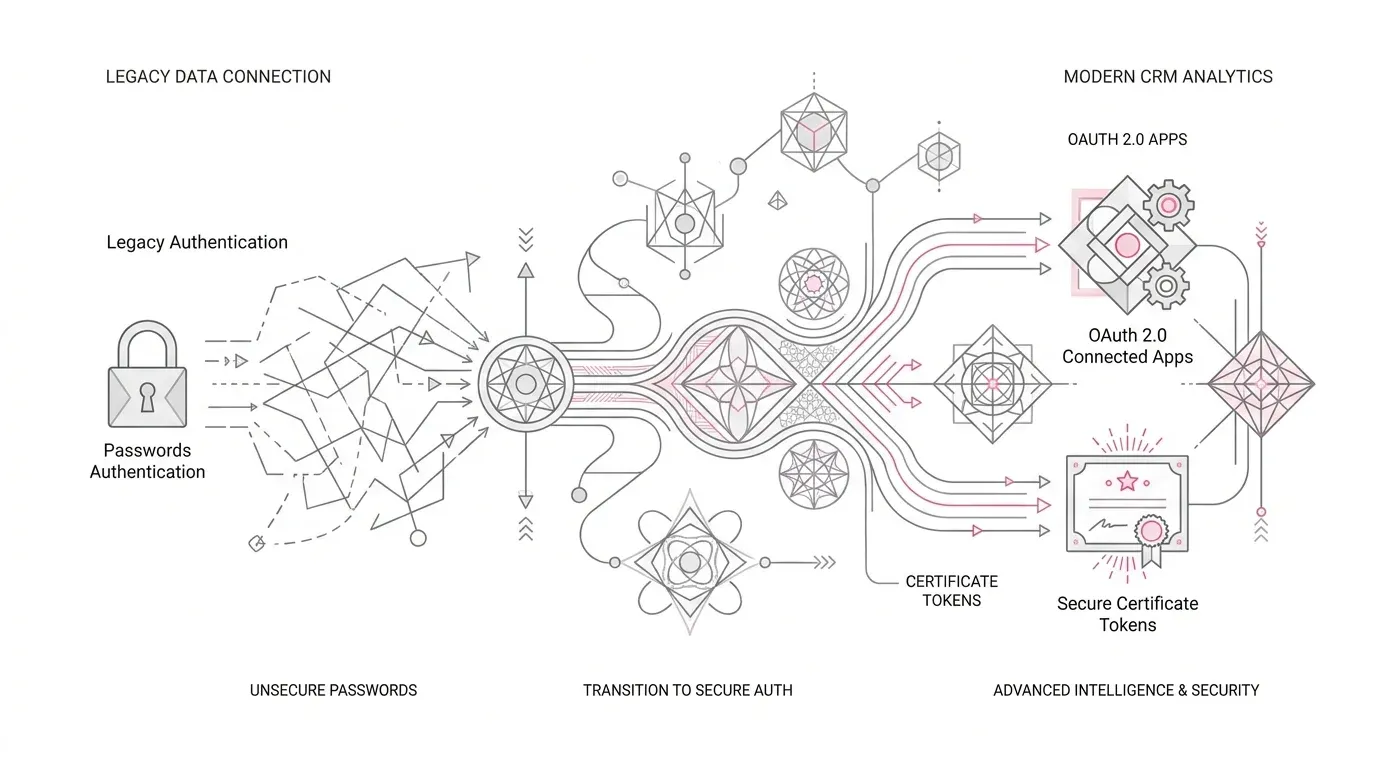
CRM streams do not run with the permissions of the administrator who happens to inspect the error. Salesforce says the query runs as the Platform Integration User and depends on the Data Cloud Salesforce Connector permission set . The connector needs the relevant object and field access, and a lookup can require access to the related object even when that related object is not being ingested directly.
This explains a frustrating diagnostic pattern: an administrator can see a field, yet the stream still fails. The administrator's access is not the access path that matters.
A refresh method does not match the connector
“Run a full refresh” is not a universal remedy. Salesforce allows manual full refreshes for CRM and Marketing Cloud Engagement data streams. Ingestion API streams are configured as upserts and cannot have a full refresh manually forced. If a new formula or transformation must apply to historical Ingestion API records, Salesforce points to re-ingesting the data or using a new Data Lake Object with a streaming transform and remapping the downstream fields.
Recovery therefore needs a connector inventory. Without it, teams can apply a valid technique to the wrong ingestion pattern.
A deployment omitted a dependency
Data Kit deployment adds another source of drift. Salesforce notes that the same kit type that created certain objects must be used to update them, that manually created objects cannot simply be taken over by a Data Kit, and that DMO dependencies and relevant fields must be included. A deployment can be syntactically successful while still leaving the target environment incomplete for the intended data flow.
The business impact is downstream, not just technical
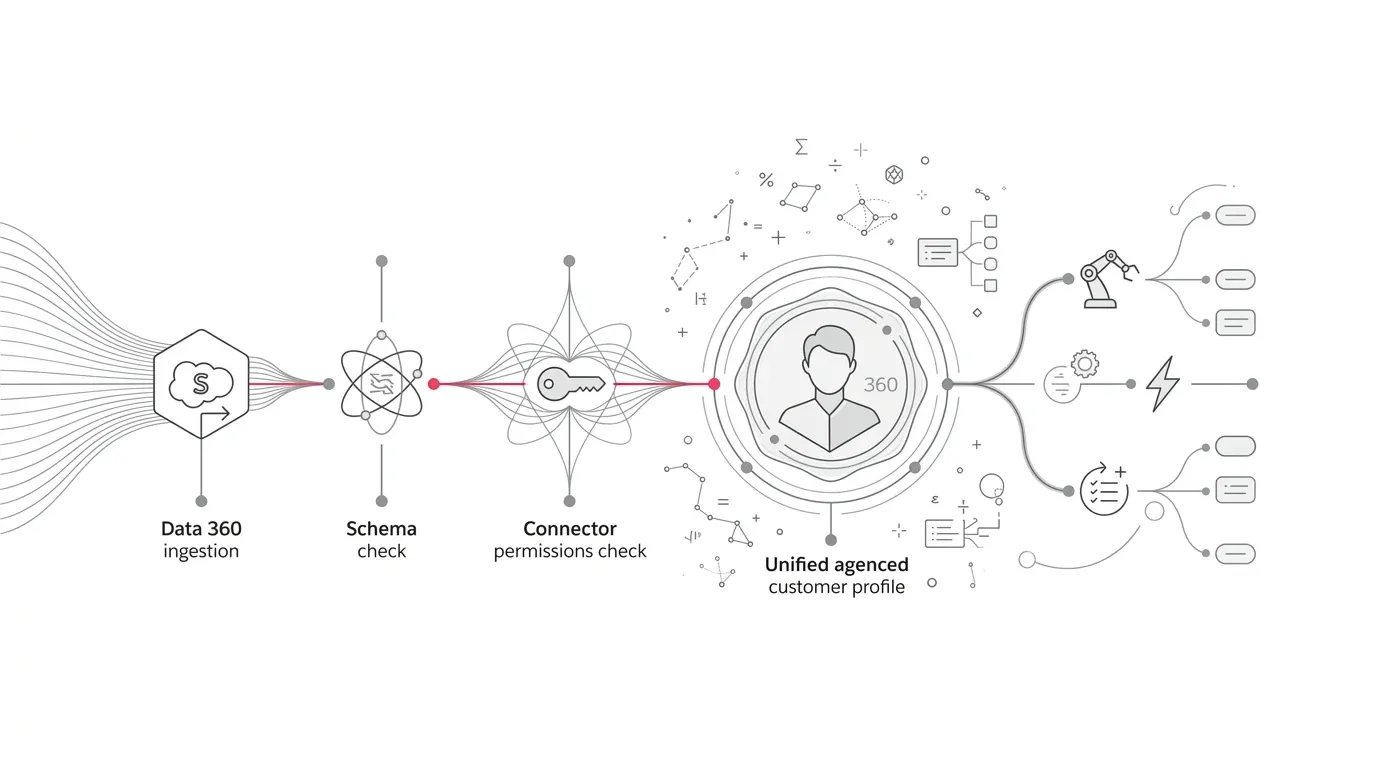
Data 360 follows an ingestion, modeling, unification, and activation chain. A failure near the beginning can create incomplete inputs later in the chain. The exact effect depends on configuration, schedules, and whether downstream processes continue to use previously processed data, so the blast radius must be verified rather than assumed.
For a healthcare organization, that can mean a service or care-support workflow does not have the latest eligible context from a connected system. For an insurer, a claims or policy-service view can omit a recently changed attribute. For a nonprofit, constituent segmentation can lag after a campaign, preference, or giving-data update. These are operational examples, not claims that Data 360 automatically makes clinical, coverage, or eligibility decisions.
The leadership concern is confidence. If a service leader cannot tell when a customer profile was last refreshed, or if an AI team cannot identify which source records grounded an answer, the organization cannot set a defensible release gate for data-dependent automation.
| Connector Type | Ingestion Pattern | Manual Full Refresh Supported? | Recovery Method for Historical State |
|---|---|---|---|
| Salesforce CRM Connector | Batch extraction via Platform Integration User | Yes (via Refresh History) | Manual Full Refresh or source-field disablement, repair, and sync |
| Marketing Cloud Engagement | Scheduled batch delta synchronization | Yes | Manual Full Refresh after restoring mapping, scope, and field access |
| Ingestion API | Streaming or batch upsert endpoint | No (manual full refresh unavailable) | Re-ingest historical payload or deploy new DLO with streaming transform |
| Web SDK & Mobile SDK | Real-time client event streaming | No | Update client schema and re-process via transformed downstream DLO |
| Cloud Storage (S3 / Azure) | File drop scheduled batch ingestion | Depends on file retention | Re-drop historical source files or trigger re-ingestion with modified header |
A seven-step recovery playbook
1. Define the incident window and pause risky downstream changes
Record the last known successful refresh, the first failed or anomalous run, the source org, the connector type, and recent releases. Avoid making additional schema, mapping, identity-rule, or activation changes until the team understands the failure. This preserves evidence and prevents several changes from becoming one indistinguishable incident.
Do not assume that every downstream process must be stopped. Instead, identify which segments, activations, calculated insights, flows, reports, and agents depend on the affected Data Lake Object or Data Model Object. The business owner can then decide whether to pause, degrade, or continue each use case.
2. Read Refresh History and download the detailed log
Salesforce says Refresh History retains the last 50 operations . Capture:
- status and timestamps;
- error code and detailed message;
- rows processed, added, or omitted;
- whether extraction or ingestion failed;
- whether failures affect one stream or many streams; and
- whether a reported failure is an expected cancellation associated with starting a full refresh.
For file-based connectors, a success status is not always enough by itself. Salesforce documents a setting in which a missing file can result in zero processed records with a success status. Review expected row movement and freshness, not only the status label.
3. Correlate the failure with source and deployment changes
Use Setup Audit Trail in the connected CRM org and the delivery team's release records. Look for:
- deleted or renamed fields and objects;
- permission-set changes;
- removal of the connector permission set from the Platform Integration User;
- changes to lookup relationships;
- Data Kit deployments or omissions;
- new formula fields; and
- changes in source-file schema or arrival patterns.
If the error names one deleted field, continue checking the same change window. Salesforce warns that the visible exception may identify only one of several deleted fields.
4. Repair the source contract and connector access
Confirm that the source object and field still exist. If the field is intentionally retired, disable it in the data stream and update mappings and dependent assets. If it should remain, restore the required access through the Data Cloud Salesforce Connector permission set.
Validate related-object access for lookups. Also verify that the permission set is still assigned to the Platform Integration User. Test with the integration identity's effective access, not with a system administrator's broader permissions.
For future changes, reverse the sequence that caused the problem: remove or remap downstream dependencies first, disable the field in the stream, validate, and only then remove the source field.
5. Choose the recovery method by connector and data history
For CRM and Marketing Cloud Engagement streams, use the supported manual refresh option when historical state must be rebuilt. Allow for the expected processing behavior that Salesforce documents, including a cancellation entry when an upsert job gives way to a full refresh.
For Ingestion API streams, decide between re-ingesting historical records and introducing a streaming transform with a new DLO. That decision should account for source replay capability, mapping dependencies, processing cost, testing effort, and the risk of duplicate or missed records. Do not improvise a production remap without a rollback path.
An incremental refresh may be sufficient when access has been restored and all missed changes will be captured. A full historical correction is necessary when the failure or schema change affected existing records that incremental processing will not revisit. Document why the selected method is complete for the affected time window.
6. Validate the downstream chain, not just the stream
A successful refresh proves that data reached a DLO. It does not, by itself, prove that the intended customer outcome is correct. Validate representative records through the complete path:
- source record to DLO;
- DLO-to-DMO mapping;
- identity resolution and reconciliation;
- calculated insights;
- segment membership and activation counts;
- Data 360-triggered flows and data actions;
- service screens or analytics; and
- Agentforce retrieval, grounding, and actions where applicable.
Compare totals and exceptions against a pre-incident baseline. Use business scenarios, including changed records and edge cases, rather than checking only one clean test record. In regulated workflows, route the evidence through the organization's data, privacy, security, clinical, or compliance review as appropriate.
7. Add monitoring and change controls before closing the incident
Salesforce supports control-event notifications for Data Streams through Flow. Teams can monitor fields such as import status, last refresh date, and row counts, then send an alert or update a report when a stream fails or behaves unexpectedly.
The stronger pattern combines platform telemetry with business thresholds:
- alert when a stream enters failure;
- alert when freshness exceeds the agreed tolerance;
- flag an unexpected zero or sharp row-count change;
- assign a named owner and escalation path;
- retain incident evidence beyond the last 50 operations; and
- run a downstream validation test after schema or permission deployments.
This turns a refresh from a background job into an owned service with measurable expectations.
Prevent repeat failures with a data contract
The durable fix is organizational as much as technical. Define a data contract for every production stream that names:
- the source owner and Data 360 owner;
- fields, types, keys, and expected relationships;
- the integration identity and required permissions;
- refresh frequency and acceptable staleness;
- historical replay or full-refresh method;
- downstream consumers;
- deployment and rollback sequence; and
- validation evidence required for release approval.
Add schema and permission checks to release readiness. A team proposing a field deletion should be able to see its Data 360 mappings and consumers before deployment. A security team changing connector access should know which streams and business processes rely on it. A Data 360 team should be able to explain how it will restore history for each connector type.
When to bring in outside help
An internal team can usually resolve an isolated permission error when ownership is clear, the source schema is stable, and downstream dependencies are limited. Consider an architecture or remediation partner when failures span several orgs or connectors, replay is uncertain, identity-resolution results have shifted, production agents or service workflows depend on the data, or no team owns end-to-end validation.
YuniQ's Salesforce consulting and managed services include implementation, customization, integration, migration, and ongoing optimization. For complex multi-system environments, exploring intelligent data pipelines with YuniQ SPEED AI can provide automated schema drift detection and continuous multi-system pipeline monitoring without creating brittle custom tooling.
A focused engagement can map the affected data path, repair the connector and deployment controls, test downstream business scenarios, and establish ongoing health checks without treating every refresh error as a platform redesign.
Recover Your Salesforce Data 360 Pipeline
Do not let stale or broken data streams disrupt unified profiles, service workflows, or Agentforce actions. Partner with YuniQ for an end-to-end Data 360 integration and recovery assessment.
Explore Salesforce Consulting