A customer is reporting a damaged vehicle, disputing a medical bill, submitting a grant document, or showing a product failure. They attach a PDF or image to an Agentforce conversation. The agent replies that it cannot accept the file.
That response may now be expected behavior, not a transient outage.
Salesforce says Agentforce agents that can receive files are moving to `error` mode by default on a rolling basis in Winter '27 orgs, beginning the week of October 12, 2026. To accept uploads, teams must explicitly configure `auto` or `managed` mode in Agent Script and make sure the connected client can receive files. An organization can also choose `disabled` or a customized `error` response. The release note explains the new default and configuration choices .
The immediate temptation is to switch `auto` back on. That may restore a demo, but it does not establish a reliable document-intake process. A service file can contain sensitive data, incomplete evidence, an unsupported format, instructions that should not control the agent, or information that belongs on a specific case rather than in conversational context.
The right question is not simply, "Can the agent read this file?" It is, "What must happen from the moment a customer selects a file until the organization can prove that the correct case, person, and process received an acceptable document?"
What changed in Winter '27
Agentforce now provides four file-handling modes:
- `auto`: the agent decides how to handle an uploaded file.
- `managed`: the file becomes available through `@system_variables.uploaded_files`, allowing the script to control how it is used or passed to an action.
- `error`: the agent rejects the upload and can return a customized message.
- `disabled`: file-upload handling is turned off without using the error response as the experience.
Salesforce recommends a dedicated subagent for file processing when uploads are accepted. Its system-variable documentation says the session retains the ten most recently uploaded files and exposes file identifiers, URLs, names, and MIME types. Salesforce documents the system variable here .
There is also a documentation wrinkle worth treating carefully. Salesforce's October developer guide describes `auto` as the default, while the newer release note says agents now default to `error` mode beginning the week of October 12. That likely reflects a change in rollout timing or documentation, but teams should verify the actual behavior in each target org and channel instead of assuming either description is universal.
Why file intake is a service workflow, not a chat feature
Attachments often carry the evidence that lets a process move forward:
- A health-plan member sends an explanation of benefits or supporting form.
- A claimant submits photos, a repair estimate, or policy paperwork.
- A nonprofit applicant provides a budget, eligibility document, or signed certification.
- A customer shares a screenshot, receipt, or damaged-product image.
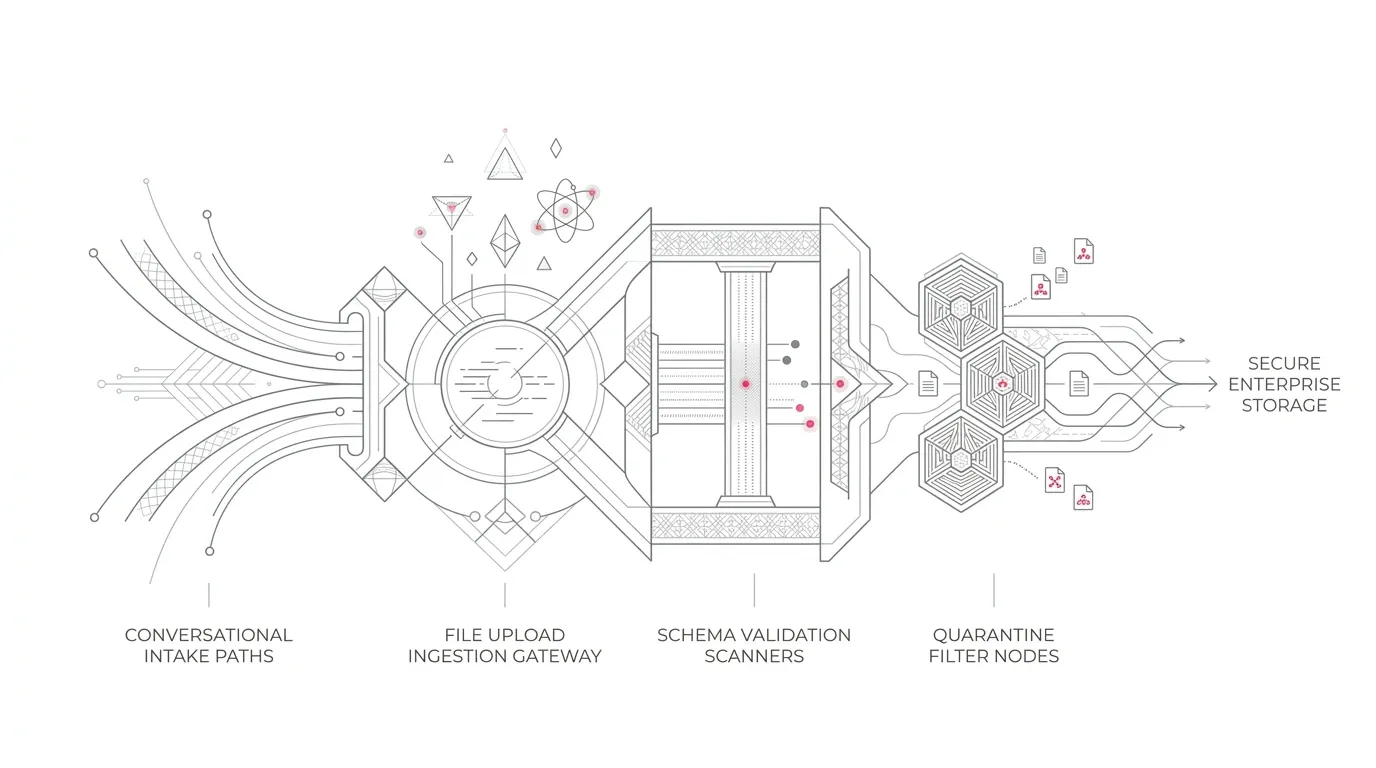
Accepting the bytes is the smallest part of the job. The organization must identify the customer, associate the file with the correct business record, validate whether the file is usable, control who can access it, determine how long it should be retained, and tell the customer what happens next. If any of those steps is ambiguous, the upload feature can create a new queue of orphaned or untrusted documents instead of reducing service effort.
Choose the mode by business outcome
Use `error` or `disabled` when the agent has no approved need to receive files. A clear response should explain what the customer can do next: use an authenticated portal, send the document through an approved channel, or transfer to a human. Avoid a dead end such as "file not supported" with no recovery path.
Use `auto` only when the agent can safely interpret the supported content without a deterministic routing or storage requirement. Even then, define what the agent may infer from the file, what it must not do, and when it should decline or escalate.
Use `managed` when the file must enter a controlled business process. This mode gives the script an explicit object to route into actions and validations. For claims, case evidence, healthcare service, and grant administration, that control is usually more important than the convenience of letting the agent decide.
Mode selection is not a security or compliance conclusion. It is one architecture choice inside a broader operating process, which should be reviewed by the organization's security, privacy, records, legal, and domain owners as appropriate.
A seven-gate implementation plan
Define the document contract
For each service intent, specify:
- Who is allowed to submit the file
- Which document or image types are expected
- Whether the document is required, optional, or prohibited
- What record it must be associated with
- Which facts may be extracted
- Which decisions require human review
- What the customer should receive as proof of acceptance
Do not use one global instruction such as "process customer files." A screenshot for technical support and a medical document for benefit review have different ownership, access, retention, and validation needs.
Map every connection and channel
The agent configuration is only one layer. Salesforce's current setup page lists Service and Employee agents built or upgraded to Agent Script, with Enhanced Chat v1, Enhanced Chat v2, and Lightning Experience as supported surfaces. Mobile is currently excluded. Some third-party messaging clients split multiple attachments into separate messages.
Build a matrix of agent version, connection, channel, authentication state, file-sharing setting, maximum size, supported type, and human-escalation destination. Test the real deployed client. Success inside Agentforce Builder does not prove that the Experience Cloud or messaging experience is configured correctly.
Establish an explicit file policy
Salesforce currently documents PNG, JPEG, and PDF, up to 5 MB per file, up to five files per message depending on the channel, and ten files per conversation. Those are product constraints, not a complete business policy.
Define a narrower allowlist where the use case permits it. Decide what to do with an encrypted, corrupted, mislabeled, duplicated, illegible, or oversized file. Give the customer a precise recovery message, and avoid silently dropping earlier files if the conversation reaches its limit. Recheck Salesforce documentation before deployment because supported models, channels, formats, and limits can change.
Treat uploaded content as untrusted
A file can contain both business data and text that attempts to redirect the agent. Salesforce's Well-Architected guidance says externally supplied content should be treated as untrusted, with validation contracts and separation between instructions and data. The trust guidance also emphasizes least privilege, monitoring, and human checkpoints .
Keep the agent's authoritative instructions outside uploaded content. Validate expected file metadata before processing. Limit the file-processing subagent and its actions to the minimum required scope. Do not let a document instruct the agent to change identity, skip verification, approve a claim, disclose another customer's data, or invoke an unrelated action.
Control identity, record association, and storage
Before attaching a file to a record, prove that the conversation is operating in the correct identity context and that the target record is unambiguous. Define how the process handles shared devices, guest users, duplicate open cases, household or dependent relationships, brokers or caregivers, and customers with more than one active claim or application.
Document where the file is stored, who can access it, what metadata is captured, how retention and deletion rules apply, and how access is reviewed. Guest uploads on Experience Cloud require additional configuration and sharing decisions. A successful upload is not evidence that the correct people can safely use the file afterward.
Design deterministic exceptions and human review
The agent needs named outcomes for at least these conditions:
- Unsupported or oversized file
- File cannot be opened or interpreted
- Required pages or fields appear missing
- Identity or target record is uncertain
- Duplicate file detected
- High-impact decision requires a qualified reviewer
- Backend action or record attachment fails
- Customer sends more files than the session retains
For each outcome, specify whether to retry, ask a clarifying question, open a task, create or update a case, transfer to a human, or direct the customer to an approved alternative. Preserve enough context for the employee to continue without asking the customer to start over.
Test and reconcile the complete journey
Test representative personas, channels, devices, file types, sizes, languages, and accessibility needs. Include negative and adversarial cases, not only clean sample PDFs. Verify what the customer sees, what the agent interprets, which action runs, where the file lands, who can open it, what is logged, and what happens when a dependency fails.
Reconcile counts across the journey:
- Upload attempts
- Accepted and rejected uploads by reason
- Successfully interpreted files
- Files attached to the intended record
- Cases awaiting manual review
- Transfers where the employee received the attachment and summary
- Orphaned, duplicated, or unprocessed files
- Customer-confirmed completions
A high upload-success rate can hide a poor business outcome if files are attached to the wrong record or sit unreviewed.
Industry-specific decisions
Healthcare and health insurance
Separate general service evidence from documents that could contain protected or clinically sensitive information. Define minimum necessary access, qualified review, identity assurance, retention, and alternative intake. The agent should not make clinical or coverage determinations merely because it can summarize a document. Security, privacy, records, and clinical or benefit owners should review the design against the organization's obligations.
Insurance
Map each attachment to the claim stage and evidence type. A photo at first notice of loss, an adjuster estimate, and an identity document require different validation and ownership. Preserve the original, flag duplicates, make confidence visible, and keep adjudication or fraud decisions inside approved processes with accountable human oversight where required.
Nonprofit foundations
Do not let a file-size or format rule quietly exclude an applicant. Provide an accessible alternative and a clear way to correct an incomplete submission. Separate applicant-provided evidence from the agent's instructions, preserve the original document, and make review status visible to program staff.
What leaders should ask this week
- Which deployed Agentforce experiences expose a file-upload control?
- What mode is each agent actually using after the Winter '27 update?
- Which customer journeys genuinely require attachments?
- Can every accepted file be traced to an authenticated person, intended record, named owner, and final disposition?
- What does the customer see when processing fails?
- Which uploaded content can influence agent reasoning or actions?
- Which decisions require a person, and is the handoff tested?
The new default is useful precisely because it forces a choice. Leave uploads in error mode where there is no governed business need. Where documents are essential, build a controlled intake service rather than a permissive attachment feature.
Yuniq's Salesforce practice provides implementation, customization, integration, and ongoing support, and its published work includes healthcare case management and Salesforce document workflows. Talk with Yuniq about assessing an Agentforce document-intake journey , from channel configuration and record routing through testing, reconciliation, and operational handoff.