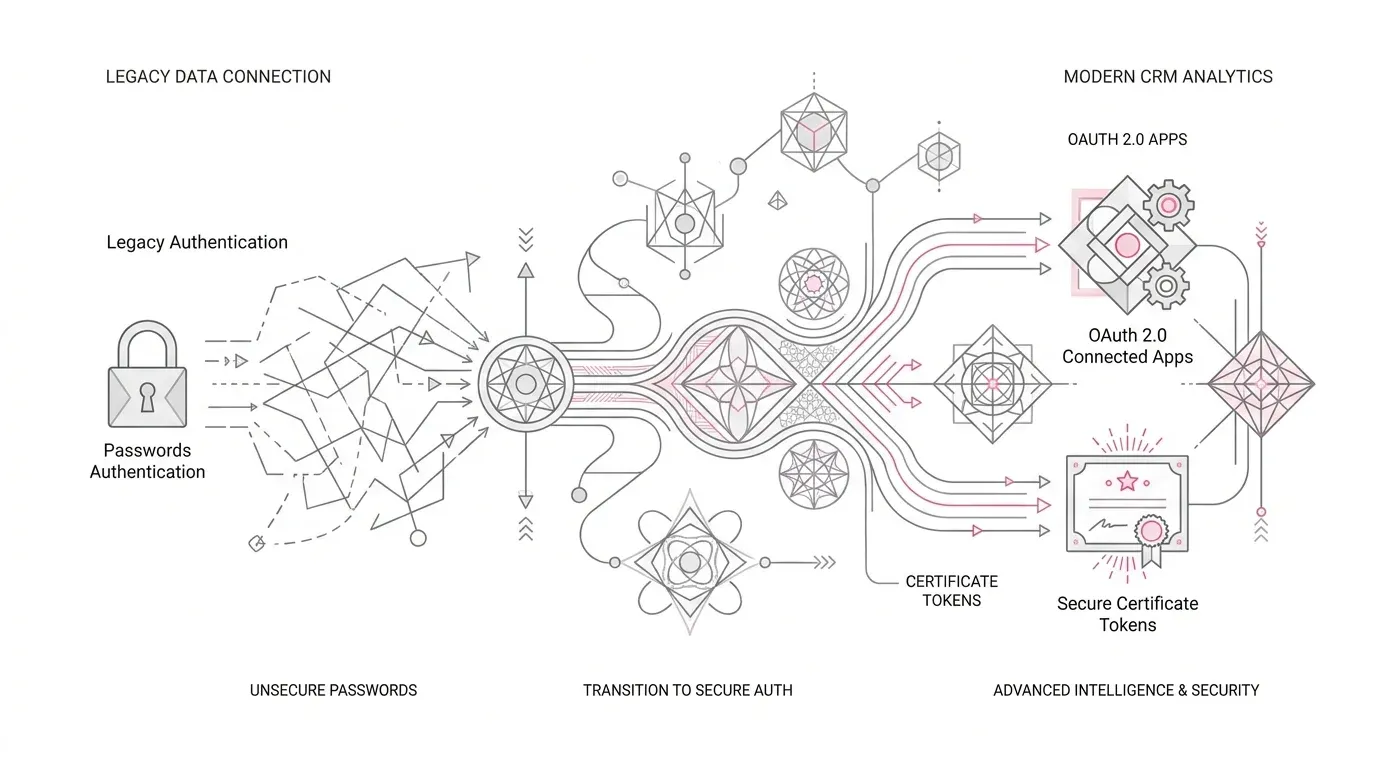
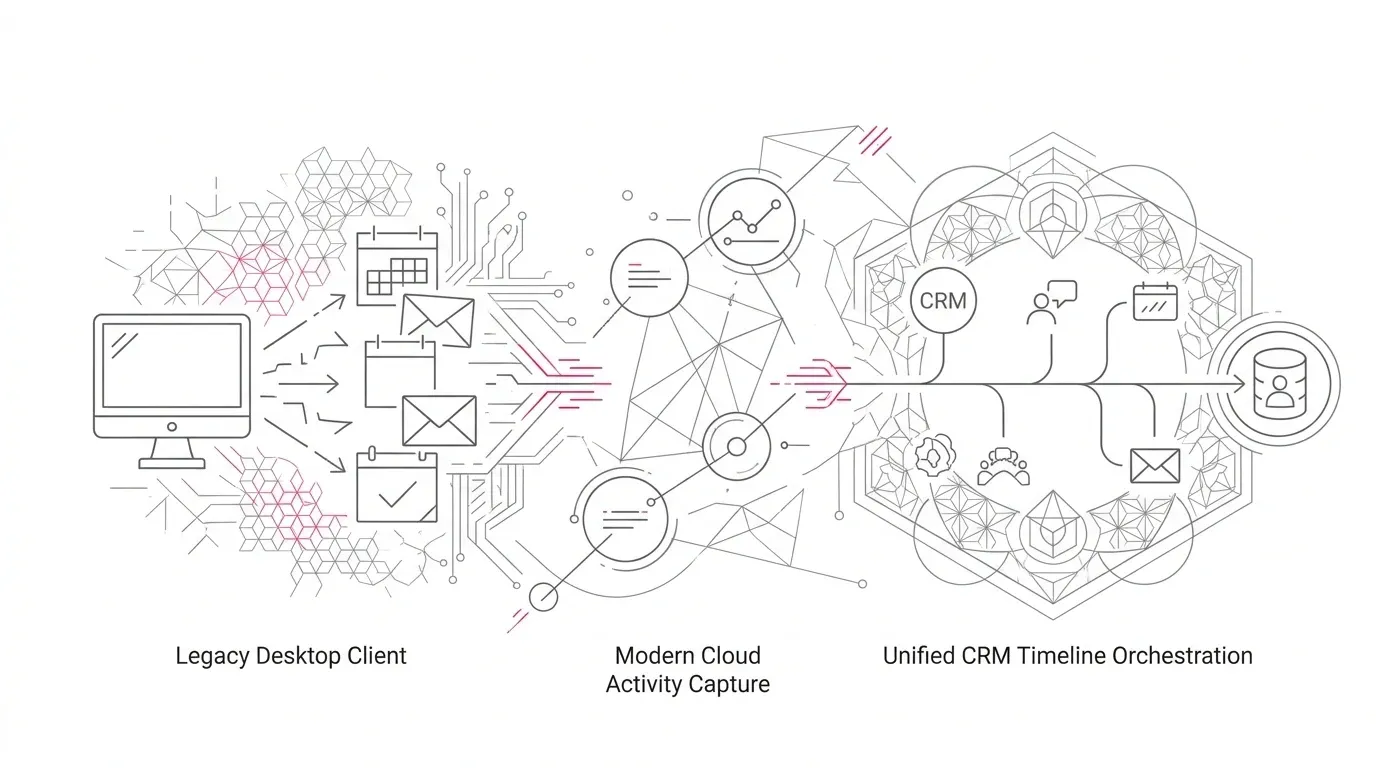
Salesforce for Outlook stops working on January 30, 2027. If your organization still relies on the Windows desktop client, the retirement will end its connection to Salesforce, stop contact, event, and task synchronization, remove the legacy side panel and email-logging functions, and make its Outlook configurations inaccessible.
The obvious response is to install Salesforce’s newer Outlook tools. That is necessary for many organizations, but it is not a migration plan.
Salesforce says Outlook Integration replaces the side-panel experience and Einstein Activity Capture replaces automated contact and event sync. It also warns that custom field mappings and sync filters do not transfer automatically, and that the newer products do not cover every legacy scenario. Meanwhile, newer email-capture options change how activity is stored, shared, reported, automated, and charged against data storage.
For a healthcare organization, insurer, or nonprofit foundation, those differences can affect much more than sales productivity. They can change which messages become CRM records, who can see sensitive correspondence, whether activity reports remain complete, and how teams reconstruct customer, patient, member, donor, or grantee interactions.
The right goal is not to reproduce every old setting. It is to preserve the business outcomes that still matter, using a deliberately governed design.
What exactly retires on January 30, 2027?
Salesforce’s October 1 retirement notice applies to Salesforce for Outlook, the installed Windows desktop application. It is different from Outlook Integration, the current Microsoft Outlook add-in, and from Einstein Activity Capture, the service that can capture or synchronize email, contacts, and events.
After retirement:
- the legacy client can no longer connect to Salesforce;
- contacts, events, and tasks stop syncing through that client;
- users lose its side-panel and desktop-tray functions, including legacy email logging;
- administrators lose access to Outlook configurations in Setup; and
- users can no longer download the client or view their old configuration.
Previously synchronized Salesforce and Microsoft Outlook data is not deleted by the retirement. The risk is loss of ongoing functionality and loss of configuration visibility, not an automatic purge of historical records.
Because similarly named products coexist, the first task is identification. Do not assume that an Outlook side panel means a user is on the retiring product. Confirm the installed software, assigned configurations, authentication path, actual sync behavior, and user population.
Do not treat Outlook Integration and EAC as one product
The replacement architecture has separate parts:
- Outlook Integration gives users a Salesforce side panel inside Outlook. It supports viewing Salesforce context and manually logging or creating supported records.
- Einstein Activity Capture provides automated capture or synchronization capabilities for email, contacts, and events, depending on configuration and licensing.
- Sync Email as Salesforce Activity stores matched email data as standard `Task` and `EmailMessage` records in Salesforce, making it available to standard reporting, APIs, flows, and other platform capabilities.
An organization may choose Outlook Integration without automated email capture. Another may use Outlook Integration plus contact and event sync. A third may need automatic email capture with carefully defined exclusions and sharing. Some legacy scenarios may require an AppExchange product or a custom Microsoft Graph integration.
The decision should follow the workflow, not the product recommendation.
Five decisions to make before configuring the replacement
Which user outcomes must continue?
Interview representatives, service teams, executives, and administrators about what they actually do today. Separate the work into capabilities:
- view Salesforce context in Outlook;
- log a selected email to a CRM record;
- create or update Salesforce records from Outlook;
- synchronize contacts;
- synchronize calendar events in one or both directions;
- capture email automatically;
- relate activity to contacts, accounts, opportunities, cases, claims, grants, or custom objects;
- report on activity and trigger automation; and
- retain or dispose of activity under business and records policies.
This prevents a common mistake: turning on broad automatic capture to replace a narrowly used manual-logging workflow.
What should become a Salesforce record?
With Sync Email as Salesforce Activity , matched emails can become `Task` and `EmailMessage` records. That enables standard reports, APIs, triggers, flows, and longer retention under the organization’s Salesforce storage model.
It also expands the governance surface. Salesforce documents that these records count against core data storage. If users manually log messages while automatic sync is enabled, the same email can be logged twice. Attachments are not synchronized into Salesforce, and matching depends on email addresses and configured logic.
Decide whether to capture the full email body, header information only, or no automatic email content. Define excluded people and domains. Model expected storage growth before enabling a large population, and identify an archiving or deletion approach where appropriate.
Who should be able to see captured activity?
Email visibility is not merely an inbox setting once the data becomes a Salesforce activity. Salesforce’s current documentation says activity sharing, task ownership, and role hierarchy affect access to synchronized email records. It also notes that an `EmailMessage` can match a contact or lead even when the syncing user cannot access that record.
Test access with real personas and realistic data classifications. A system administrator’s view is not proof that a claims adjuster, care coordinator, fundraiser, executive assistant, or external user sees only what they should.
For privacy-sensitive workflows, involve the organization’s security, privacy, legal, and records teams. Product configuration alone does not establish compliance.
Which mappings, filters, and automations must be rebuilt?
Salesforce explicitly says custom field mappings and sync filters do not automatically transfer from Salesforce for Outlook. Its support comparison also documents differences in supported editions, licenses, Microsoft versions, user counts, storage, and hybrid deployments.
Inventory every legacy configuration before the Setup pages disappear. Include:
- assigned users and groups;
- synchronization directions;
- conflict behavior;
- field mappings;
- sync filters;
- publisher layouts and side-panel actions;
- exclusions;
- related automation and reports; and
- desktop deployment or endpoint-management rules.
Classify each item as retain, redesign, replace, or retire. If a custom mapping is not supported natively, do not silently drop the field. Decide whether a flow, integration, custom process, or third-party product is justified.
How will you prove completeness?
A successful sign-in proves only authentication. It does not prove that an activity arrived once, was related to the right record, is visible to the right person, appears in reports, triggers the right automation, and remains recoverable.
Recent practitioner discussions describe missing, duplicate, and incorrectly associated activity during migrations. Those reports are anecdotal, but they point to useful test cases.
Build reconciliation into the pilot. For a controlled sample of users and transactions, compare Microsoft 365 source activity with Salesforce results by type, owner, date, direction, related record, and processing status. Investigate every mismatch before expanding the rollout.
A practical Salesforce for Outlook migration plan
Step 1: Identify the real footprint
Find active Salesforce for Outlook configurations and assigned users. Confirm which endpoints still have the desktop client installed and whether those users are active. Distinguish the legacy client from Outlook Integration, Lightning Sync, Salesforce Inbox, and EAC.
Observe actual usage rather than relying only on configuration. Some assigned users may no longer use the tool; other critical users may depend on it every day.
Step 2: Preserve the legacy design
Export or document configuration details while they remain accessible. Capture screenshots or structured records of mappings, filters, sync direction, user assignment, and special cases. Record the business reason behind each nonstandard setting.
This is not a plan to recreate everything. It is the evidence needed to decide what still matters.
Step 3: Select a future-state pattern by persona
Use the smallest pattern that meets the requirement:
| Requirement | Likely starting pattern |
|---|---|
| View CRM context and log selected emails | Outlook Integration |
| Synchronize contacts and events | Outlook Integration plus EAC, subject to support and licensing review |
| Capture email automatically for reporting and automation | EAC with Sync Email as Salesforce Activity, with storage, exclusion, matching, and sharing controls |
| Preserve unsupported mappings or specialized workflow | AppExchange or custom integration assessment |
Different personas can use different patterns. Executives, relationship managers, service staff, and high-volume sales teams may not need identical capture rules.
Step 4: Design data and control boundaries
Define capture scope, exclusion rules, content depth, matching behavior, record ownership, sharing, retention, archiving, deletion, and monitoring. Estimate data volume from representative mailboxes instead of extrapolating from assumptions.
For healthcare and insurance organizations, test messages that contain sensitive operational information and cross-functional recipients. For foundations, test communications involving applicants, grantees, reviewers, donors, and board members. Use synthetic or appropriately controlled data during testing.
Step 5: Rebuild only justified customization
Replace required mappings, filters, layouts, reports, and automations. Remove settings that exist only because the legacy client once required them. Document intentional differences so users and support teams do not interpret them as defects.
Step 6: Pilot complete workflows
Select a small but representative group. Include different Outlook clients, Microsoft 365 configurations, Salesforce roles, regions, and mobile or hybrid-working patterns.
Test inbound and outbound messages, recurring and updated events, contact changes, delegated calendars, distribution lists, excluded domains, record-access boundaries, manual logging, automatic capture, failure recovery, and user offboarding. Check the result in the activity timeline, standard reports, APIs, automation, and downstream analytics.
Step 7: Roll out in waves with reconciliation
Move users in controlled groups. Track connection status, sync latency, duplicate rates, unmatched activity, storage growth, report variance, support volume, and user adoption. Keep named owners for Salesforce, Microsoft 365, security, data governance, and business operations.
Do not declare success on deployment day. Monitor through at least one complete business cycle relevant to the team.
Step 8: Decommission the legacy client
After acceptance criteria are met, disable the old configuration, remove the desktop software through endpoint management, close temporary exceptions, and preserve the migration record. Confirm that support teams can diagnose the new architecture and that users know the approved way to log or capture activity.
Complete this before January 30, not on January 30.
Industry-specific risks to test
Healthcare
Email and calendar data can include appointment context, referral details, care-coordination information, or other sensitive content. Decide whether full-body capture is necessary, validate exclusions and access boundaries, and obtain qualified privacy and security review. Do not assume that enabling a Salesforce feature by itself satisfies healthcare obligations.
Insurance
Claims, underwriting, broker, and policyholder communications may support operational decisions or later review. Validate record association, ownership changes, retention, litigation-hold processes, and continuity when employees leave. Pay special attention to shared mailboxes and delegated calendars.
Nonprofit foundations
Grant applications, reviewer communications, payment discussions, donor relationships, and board correspondence may cross multiple records and teams. Test whether automatic matching produces the right context and whether temporary reviewers or external users receive appropriate access.
The executive decision
Salesforce for Outlook retirement creates a deadline, but the strategic decision is broader: what communication activity belongs in the CRM, for which users, under which controls, and for what business purpose?
Answer those questions first. Then choose Outlook Integration, EAC, Sync Email as Salesforce Activity, or an alternative architecture. A migration that preserves business outcomes and improves governance is more valuable than a hurried attempt at feature parity.
Yuniq’s Salesforce services include migration, integration, customization, validation, and ongoing support. If your organization still uses Salesforce for Outlook, Yuniq can help assess the footprint, design the replacement, rebuild justified mappings and workflows, and test the complete Microsoft 365-to-Salesforce process before January 30.